Checking AV Properties - Basics
Peter Bubestinger-Steindl
(p.bubestinger @ AV-RD.com)
April 2022
Abstract
This is about technical properties of audiovisual files, how to identify and check/validate them.
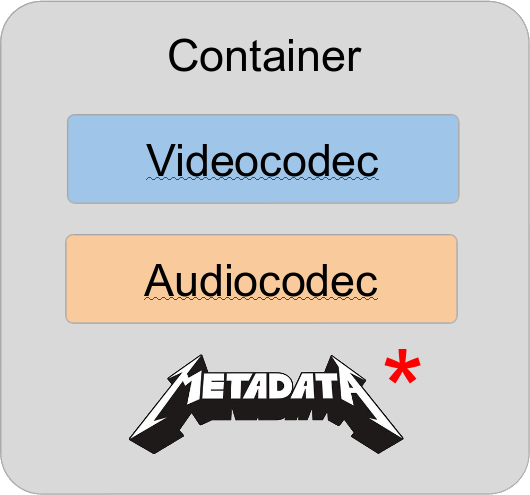
The “Digital Video Trinity”
![]()
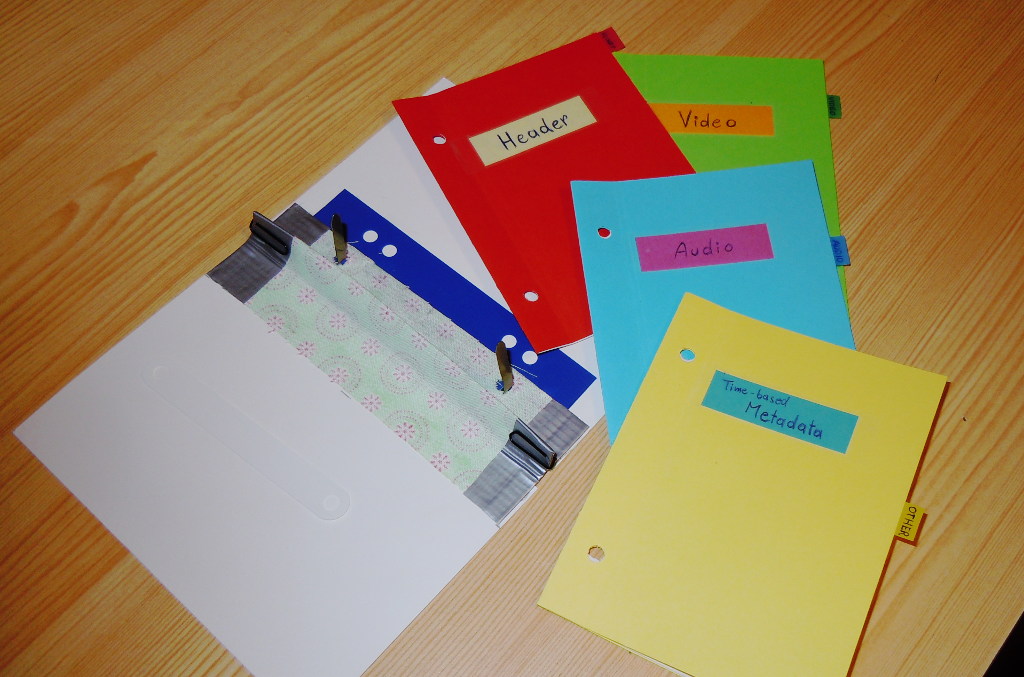
Structure
![]()
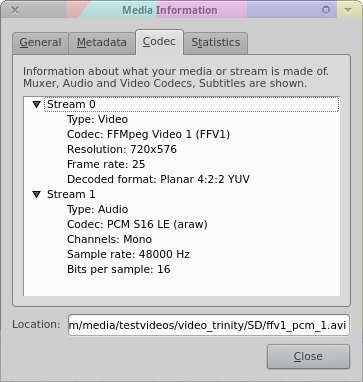
VLC
- Great videoplayer
- 99% chance you have it on the computer
- Allows quick-check of tech-MD
(Ctrl + J)
- For all formats it can play!
Website: videolan.org/vlc
VLC
![]()
Very handy, but not the best for this job.
A/B comparison
(Only in view ‘Easy’)
- Load more than 1 file:
- Select multiple files
- or drag/drop a whole folder
- Scroll dropdown = switch between files
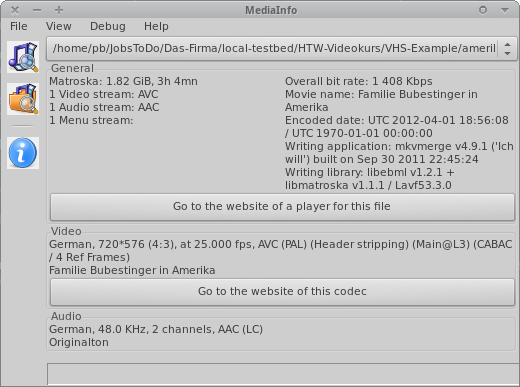
Excellent for a quick spotting of common/different values in a given set.
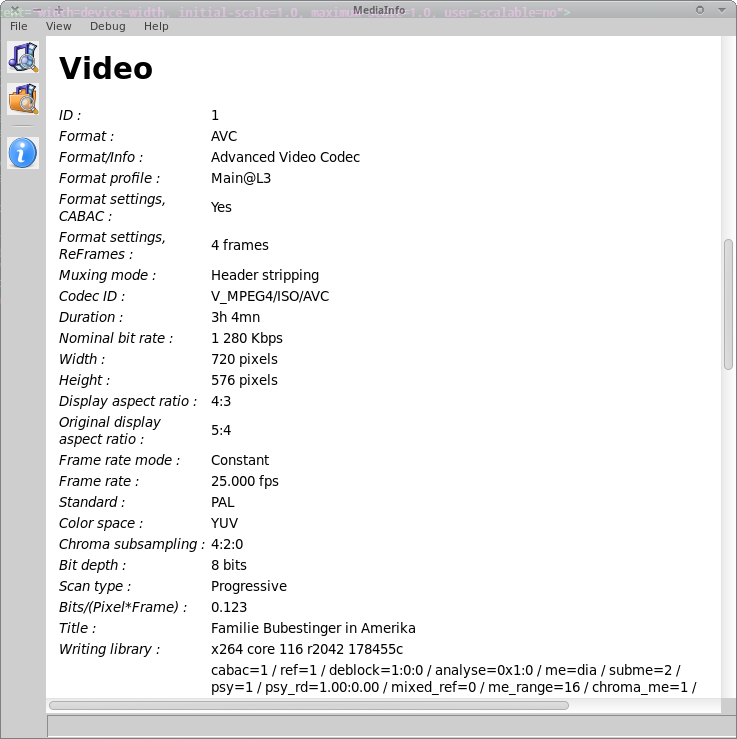
View ‘HTML’
![]()
View ‘HTML’
- Nicer to read than view ‘Text’.
- Identical content.
Machine Readable
(aka “parsable output formats”)
- More suited for automated workflows.
- Can be saved from GUI.
- But: Usually commandline.
Report to File
Parsing Output
Built-in:
mediainfo --Inform="Audio;%Format%" myvideo.mkv
Using “xmlstarlet”:
xmlstarlet sel -t -m \
  "//_:media/_:track[@type='Audio']" \
  -c . -n \
  myvideo.xml`
Comments?
Questions?